Introduction
The second most common question I get from students in my Portfolio & Career Prep lab at ArtCenter is whether they can bring a logo animated with P5.js into their Cargo site.
It’s a fairly straightforward process but there are a few steps you have to follow. P5 uses native web technologies and I love helping my students bridge two worlds that seem completely separate in their minds.
Check out the walkthrough on YouTube and follow the instructions written here.
Here we go! For this example, I grabbed a sample typographic sketch from the Generative Design book’s website and swapped in my own initials.
Why Not Just Use the P5 Editor’s Share Embed?
This is a reasonable question.
The P5.js web editor has a built-in way to embed a sketch: go to File → Share, and it’ll hand you an iframe embed code.
<iframe src="https://editor.p5js.org/your-username/full/your-sketch-id"
  width="400" height="400"></iframe>
The problem is that this embed is really built for sharing a sketch, not for use in a site’s UI. It adds a pink bar across the top with the sketch title and editor branding. That just won’t do for the nav bar of your site.
So instead, we’re going to export the sketch as its own static site and embed that.
Downloading and Hosting the Sketch
Exporting from the P5 Editor
In the P5 editor, go to File → Download. This packages up your sketch as a standalone static website — an index.html, your sketch’s JS, the p5.js library itself, and any assets — and downloads it as a zip file.
Unzip it and you’ll have a folder that looks something like this:
logo/
├── index.html
├── sketch.js
├── style.css
└── libraries/
    └── p5.min.js
It’s a good idea to pop it open in a code editor like VS Code just to confirm index.html is there and everything looks intact.
Deploying to Netlify
Now we need somewhere to host this folder so it has a real URL we can point an iframe at. Netlify is a free static site host, and it’s about as low-friction as it gets for this — no build step, no config, just drag and drop.
Once you’re logged into Netlify, you’ll land on your Sites dashboard. Drag the sketch folder straight from your desktop (or Finder) onto the dashboard, and Netlify will deploy it for you in a few seconds.
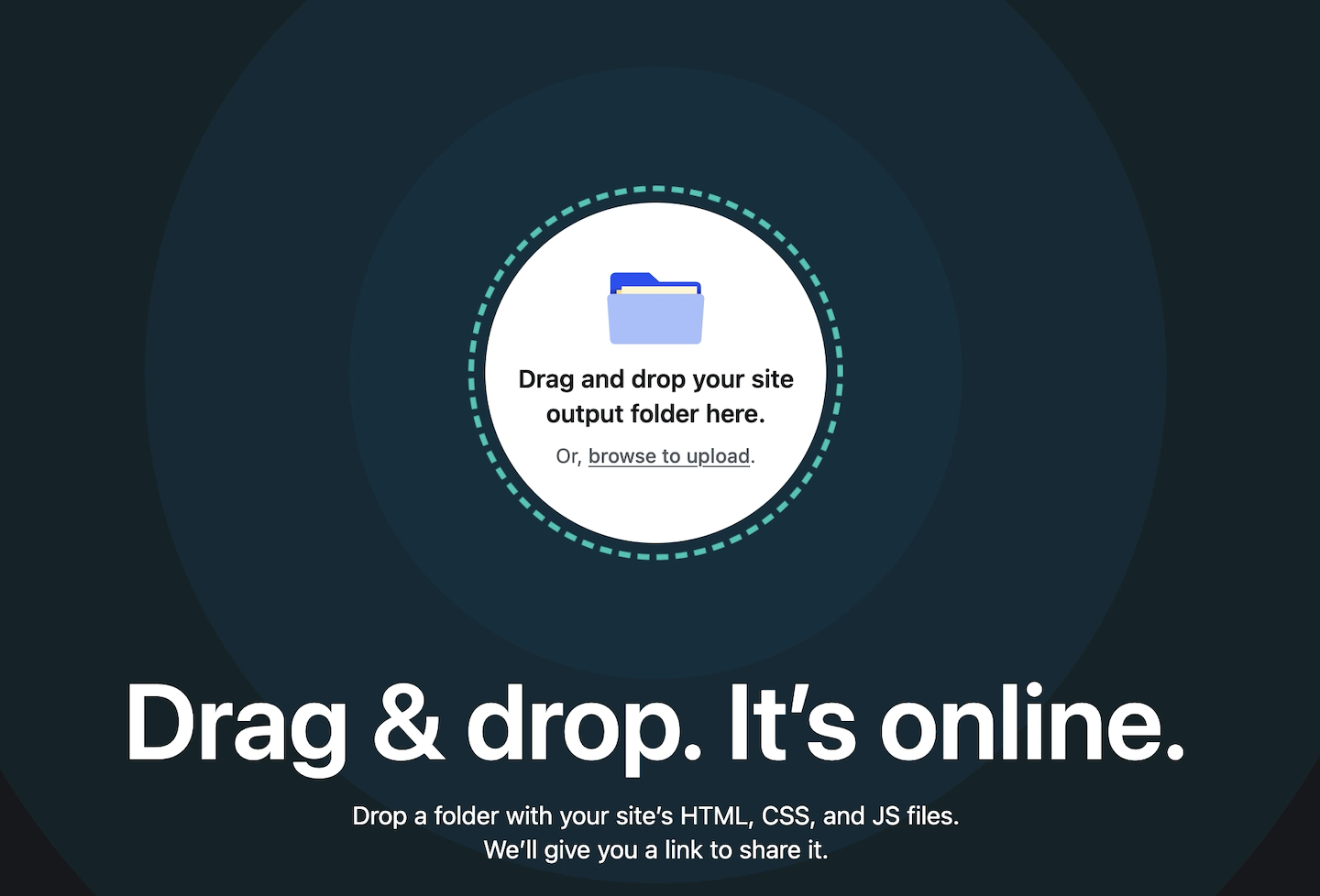
Netlify will give the site a randomly generated subdomain (something like wonderful-sketch-123456.netlify.app), which works fine as-is. If you want something more memorable, you can rename it from the site’s settings.
If you plan on tweaking the sketch a lot, Netlify also supports continuous deploys straight from a GitHub repo — worth setting up if you’ll be iterating. But if you’re only changing it occasionally, updating is just as easy: make your edits, and drag the folder onto the dashboard again to redeploy.
Embedding the Sketch in Cargo
Finding the iframe Code
With the sketch live on Netlify, grab the URL and build an iframe pointing to it. If you want a refresher on iframe syntax, MDN’s iframe reference is a good place to start.
<iframe
  src="https://your-sketch-name.netlify.app"
  width="400"
  height="400"
  style="border: none;"
  title="Animated logo"
></iframe>
I started with a 400×400 square as a rough size, then adjusted once I could see it in place on the actual site.
Adding the iframe to Cargo
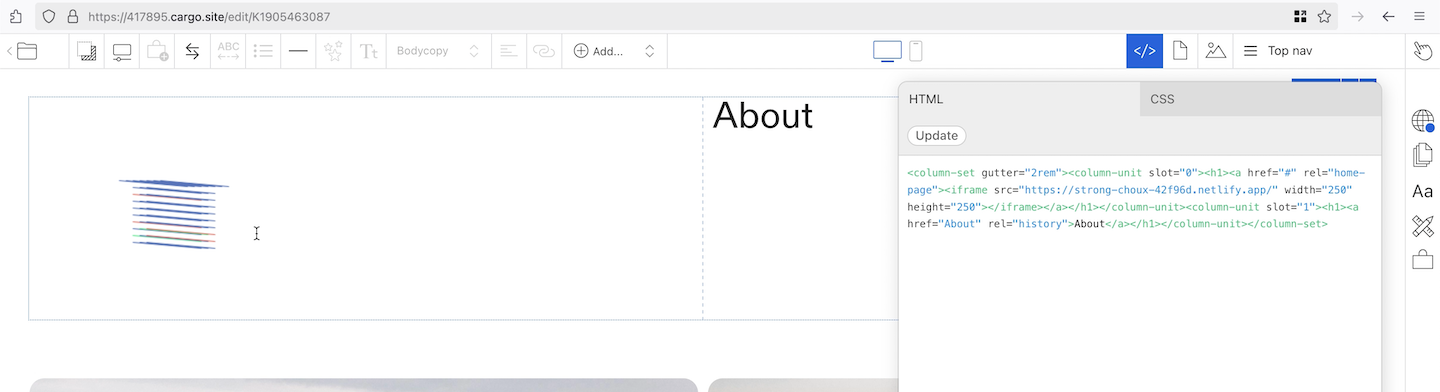
In Cargo, open the page you want the logo on (in my case, the homepage), and switch to the code editor for that element — in the left nav, find the section for your header/logo and open its code view. You’re looking for wherever your site title currently lives, likely an h2.
Replace that header markup with your iframe embed code.
Sizing the Embed
Once it’s in, hit Update to save, then check the sizing against the rest of your Cargo site — you’ll likely need to nudge the width and height. Sketches that are more contained (rather than ones designed to spread out and fill a full browser window) tend to work better as a compact logo.
Cargo saves your edit, but it won’t be live until you hit Publish Changes from the top of the editor — easy to forget, so don’t skip it.
Once published, load up your site and you should see your sketch running as your logo — fully interactive, no editor chrome, no pink bar.
Conclusion
Using a P5 sketch as a logo on your Cargo site is absolutely doable — you just need to follow a few manual steps.
If you have any questions, feel free to leave a comment on YouTube, LinkedIn or Bluesky. Happy coding!